⚡
Tap to switch on
Pick a node, tap once, no setup.
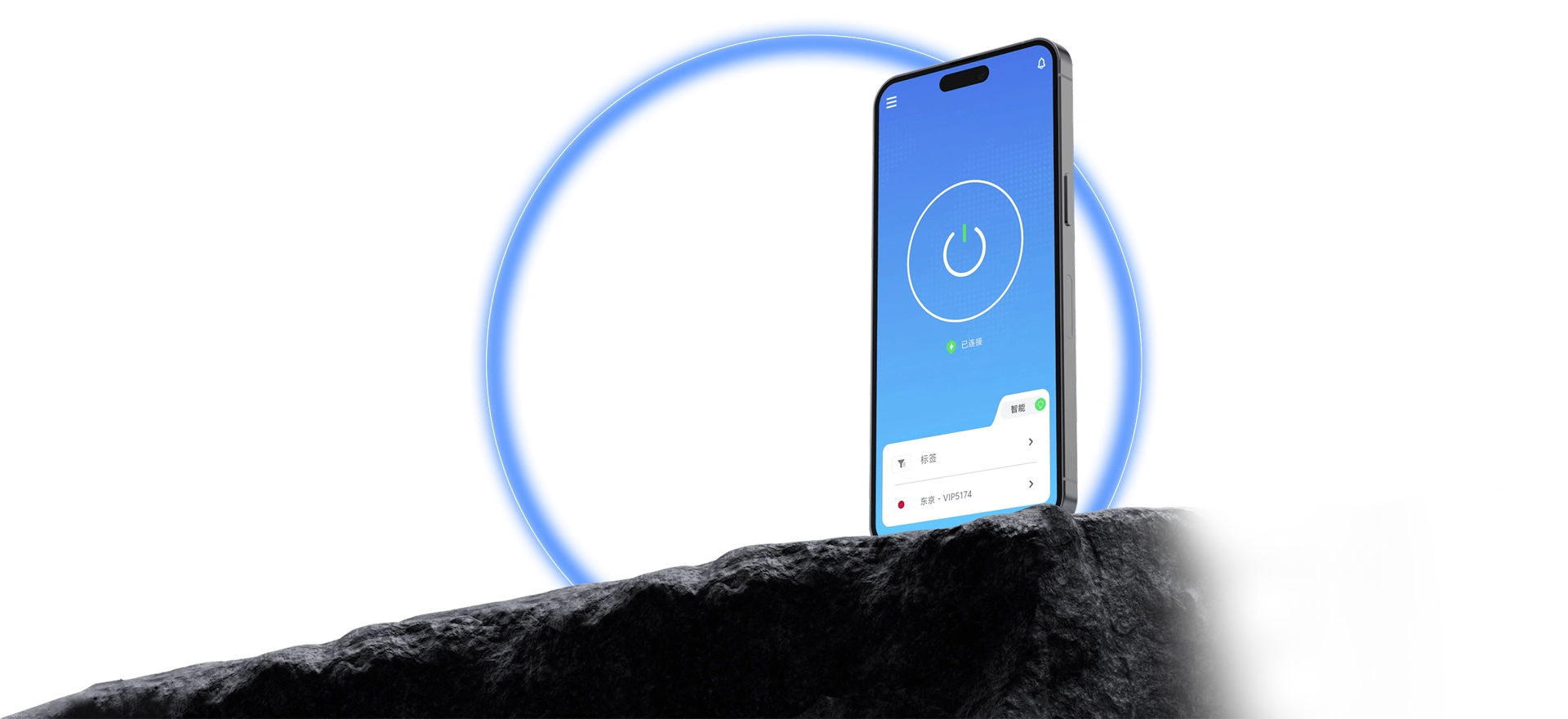
Open QuickQ, pick a node and switch on. When you see “Connected”, start your film, match or team game without the opening stutter.
Sorting out the network after a picture freezes or a game drops usually means you've missed the key moment. QuickQ suggests swapping the order: switch on in the software, confirm the status, then open your video or game. The switch-on button and node list sit in the same place on every platform, so a new device works straight away. Actual speed still depends on home broadband, Wi-Fi signal and the destination site, so the homepage also offers a two-minute speed test, a guide for older relatives, new-device steps, holiday prep, router placement and a troubleshooting order.
Only what gets used every day.
Pick a node, tap once, no setup.
Listed by region for easy changes.
Connecting, connected, disconnected always shown.
Desktop, phone and tablet on one login.
Play a bit before watching properly.
Getting going and issue list a tap away.
Tap a platform for install hints, or download the installer directly.
Get your platform's installer and run it.
Sign in and pick a node.
Once Connected, try a preview.
| Activity | Before | When it stutters |
|---|---|---|
| TV dramas | Pause big downloads on other home devices | Lower the picture a step |
| Watching matches | Sit near the router on 5GHz | Refresh, or switch off and change node |
| Team games | Turn off launcher auto-updates | Change after this round |
| Video work | Switch on early, test mic and camera | Check local network, then contact support |
We don't promise “never stutters” — we explain what affects speed.
All three plans are on the plans page.
Local network first, then node.
The longer the plan, the cheaper each month on average.
¥49 per month
About ¥24.9 / month on average
About ¥20.8 / month on average
Minimum OS and installer formats.
| Platform | Minimum OS | Installer |
|---|---|---|
| Windows | Windows 10 64-bit | EXE |
| macOS | macOS 11 | DMG |
| Android | Android 8.0 | APK |
| iOS / iPadOS | See installer download page | Follow page steps |
| Linux | Ubuntu 20.04 / Debian 11 | DEB |
Using one office worker as an example.
Switch on over mobile data for news and shows.
Switch on at boot and check key sites and work apps.
Evenings are busy — pause home downloads before dramas.
Check latency before the round; consider changing nodes after.
We don't sell personal information or push ads.
All prices on the plans page.
We say clearly what affects speed.
Lessons and issues grow with releases.
Home, outdoors and public places differ.
| Network | Traits | Watch for |
|---|---|---|
| Home broadband | Mostly stable, shared | Ask family to pause heavy use first |
| Mobile data | Changes with signal | Switch on where signal is good; avoid lifts and car parks |
| Public Wi-Fi | Unstable when busy | Avoid peaks; use data if needed |
| Workplace network | May be restricted | If it won't switch on, ask IT |
Match up and you'll know.
1 month at ¥49; decide afterwards.
12 months at ¥299, about ¥24.9 a month.
24 months at ¥499, about ¥20.8 a month — the cheapest.
Understand early, fuss less.
| Misunderstanding | Actually |
|---|---|
| Every site speeds up once on | Speed still depends on the site, broadband and device. |
| More node changes are better | Each switch disconnects; check the local network first. |
| High latency is the node's fault | Wi-Fi interference, updates and busy servers raise it too. |
| Pricier plans have more functions | All three are the same; only term and average monthly price differ. |
Steady devices, steady network.
Restarts after long uptime help.
Get the latest from the installer page.
Turn off unnecessary startup items.
Overheating slows things, especially in games.
What you can change and what you wait for.
| Thing | Sign | What to do |
|---|---|---|
| Home broadband | Slow when everyone's on | Stagger downloads; prioritise the device in use |
| Wi-Fi signal | Weak through walls | Move closer or plug in |
| Node load | Busy at night | Use a quieter node in another region |
| Destination site | The site is busy | Try later or lower the picture |
| The device | Old or hot devices lag | Close apps and cool it down |
One small thing a day; comfortable in a week.
Install QuickQ on your main device and switch on once.
Test your usual node in the day and at night.
Sign in on phone or tablet with the same account.
Practise “switch off, then change node”.
Fix a small stutter using the issue list.
Pick a term on the plans page by how often you use it.
How to arrange devices used together.
| Combo | Use | Tip |
|---|---|---|
| Phone + laptop | Commute and work | Same account; switch on the one you're using |
| Desktop + tablet | Gaming and dramas | No HD on the tablet during team play |
| Family phones | Everyday fun | Check simultaneous logins on the plans page |
| Mac + iPhone | Creating and chatting | Test nodes on the Mac, then the phone |
Mind safety as well as speed.
Shared accounts look suspicious.
Only from this site's installer page.
Log out after using someone else's computer.
Patches bring peace of mind.
Read the status and you'll know what's next.
| Status | Meaning | Next |
|---|---|---|
| Connecting | Joining the chosen node | Wait a few seconds; don't keep tapping |
| Connected | Node ready | Open content and try it |
| Disconnected | Boost off | Switch on when needed |
| Failed | Couldn't connect this time | Check local network, then change node |
For estimating when the family is online together (typical values).
| Use | Approx. bandwidth | Hint |
|---|---|---|
| SD video | About 3 Mbps | Data is enough |
| 1080p HD | About 5–8 Mbps | Allow headroom for group viewing |
| 4K video | About 25 Mbps | Cable or 5GHz preferred |
| Online games | 1–3 Mbps; latency matters more | Stability over bandwidth |
| Video calls | About 2–4 Mbps | Upload matters too |
Fewer clashes at home.
Split dramas and games.
Pause downloads while the TV plays.
Minors use it with a parent.
Follow the plans page.
Know the contents before installing.
| Kind | Contents | Tip |
|---|---|---|
| Feature update | New or refined functions | Update when free |
| System support | New OS compatibility | Update soon after OS upgrades |
| Fixes | Crash and freeze fixes | Update first if affected |
| Node changes | Updated node list | Re-pick afterwards |
Two minutes before leaving home Wi-Fi.
Read the site in order, from install to confident.
A few taps fewer, much handier.
Right-click and pin.
Open QuickQ any time.
Opens faster.
Pull down and search QuickQ.
Choose the region by what you're visiting.
| Need | How to pick | Note |
|---|---|---|
| Regional films and shows | A node near the content source | Low latency, fast loading |
| Playing with friends | A node near the game server | Check latency first |
| Everyday browsing | The recommended node | No need to change |
| Evening peak | A quieter backup node | Log day and night apart |
Common words in the software and issue list.
A minute to confirm once Connected.
Pages load normally without long blanks.
Watch 30 seconds for spinning or drops in quality.
Look in the lobby; change node if it jumps.
Keep notes like this for a few days to find your best node.
| Time | Node region | Feel | Note |
|---|---|---|---|
| Weekday daytime | Recommended | Sites and meetings smooth | Default |
| Weekday evening | Backup A | HD buffers at times | Drop a picture step |
| Weekend afternoon | Backup B | Steady latency | Good for teams |
| Late night | Recommended | Smooth | Keep |
Crowding differs by time (general pattern, for reference).
| Time | Crowding | Tip |
|---|---|---|
| 7–9 am | Medium | Commute news; SD is enough |
| 12–2 pm | Medium | Lunch videos; skip big downloads |
| 7–11 pm | High | Switch on early; use a quieter node if needed |
| Midnight–6 am | Low | Good for big downloads and updates |
What new users run into most and the usual fixes.
Check email and password, case and spaces.
Switch off, confirm normal pages open, then change node.
Allow apps from this source in settings.
System Settings → Privacy & Security → “Open Anyway”.
Five minutes a month for a steadier network.
Not just the network — everyday habits change too.
| Moment | Before | Now |
|---|---|---|
| Watching video | Play, sort stutters later | Switch on, play once Connected |
| Starting a round | Check network after dropping | Check latency first, change after |
| When it stutters | Random refreshing | Follow the issue list step by step |
| Family internet | Fighting over speed | Stagger peaks, TV first |
Wi-Fi quality depends a lot on router position.
More even coverage.
Not on the floor or in a corner.
Avoid microwaves, fish tanks, metal cabinets, thick walls.
5GHz is quick nearby; 2.4GHz is steady further off.
Go in order and you'll find most causes yourself.
Switch QuickQ off and see if normal pages open; if not, it's broadband or the router.
Pause downloads, updates and sync, then retry.
Move closer, use 5GHz or plug in.
Switch off, then try another region.
If all is fine but issues remain, update or reinstall.
New phone or computer? Follow these steps.
Choose its platform on the installer page and install.
Use the same account as before.
Pick your usual node from previous notes.
Log out of unused devices so they don't take a slot.
On crowded days, a little prep goes far.
| When | What may happen | Prepare |
|---|---|---|
| Long holidays away | Networks vary | Check plan term before leaving; note backup nodes |
| Big live sports | Huge audiences at once | Switch on 30 minutes early; keep a backup node |
| New game or big patch | Downloads pile up | Download early at quiet times |
| Shopping-festival evenings | All home devices online | Stagger downloads, TV first |
Want to know how your network really does? Test it yourself in four steps.
Open a speed test site you trust and note download, upload and latency.
Pick a node, switch on, then test on the same site.
Test once by day and once at night to see the peak difference.
Add the results to your node notes and keep the best performer.
Set QuickQ up for grandparents so they can watch videos and video-call smoothly too.
A family member installs, signs in and picks the recommended node.
Tell them to tap switch on and look for Connected — that's all.
If it fails, take a screenshot and send it to family.
Only use software from this site; ignore installers from strangers.
Yes, those are common uses. Whether things open and run smoothly also depends on the site, account, device, broadband and node.
If downloads are paused and signal is good but it's still slow, switch off and try another.
Night is peak time, so broadband and nodes are busier. Test at different times.
Pause downloads and cloud sync, check Wi-Fi and refresh; if it keeps spinning, switch off and change node.
Download the installer, sign in, pick a node, switch on — a calmer connection is close.